


Give your results
a visual voice.
Turn an existing result into an AI-generated infographic. Choose a visual direction, review the output, and create an image to keep or share.
Credit packs from$3.63
Explore the style examplesAlready have results? Open G25 Studio. Image credits, report access and AI Assistant access are separate.
A visual treatment, not a new analysis. The example values and historical imagery are illustrative.
AI-generated illustration
This decorative scene was created with AI. The people, sculptures, settings, charts and interfaces shown are illustrative: they are not verified historical depictions, actual analysis results or evidence of ancestry.
A picture to revisit.
A conversation to begin.
Bring a supported composition or reference comparison into a considered visual format. Keep a personal collection, compare creative treatments, or prepare something to share with context.
Start with the original report. AI imagery adds presentation, not scientific certainty. Check labels, values and illustrations before relying on or sharing the image.
Different moods.
The same starting result.
These existing DNA Genics examples use the same fictional values. Explore the visual directions; your generated image will vary. A theme changes presentation, not the underlying analysis.
AI-generated interpretation of genetic similarity, not proof of ancestry. Informational only, not professional advice.
Read full notice
Before you continue: the analysis you are about to generate is produced by an AI model. AI output can be incomplete, inaccurate, or simply wrong. It describes statistical genetic similarity to reference populations and is not proof of ancestry, ethnicity, identity, or descent. It is provided for informational and educational purposes only, and is not medical, diagnostic, genealogical, legal, or other professional advice. Do not rely on it to make health, financial, legal, or family decisions. To the fullest extent permitted by applicable law, DNA Genics, S.L. accepts no liability for any loss or decision arising from your use of this AI output.
 View full example
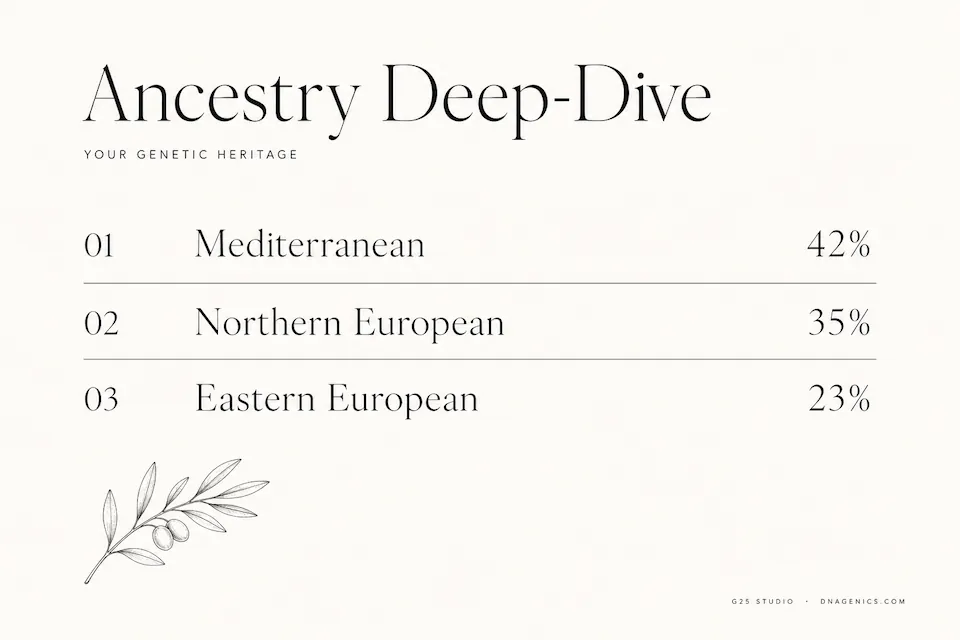
Minimalist Editorial
Quiet typography and open space. Let the composition take the lead.
AI-generated illustration
This decorative scene was created with AI. The people, sculptures, settings, charts and interfaces shown are illustrative: they are not verified historical depictions, actual analysis results or evidence of ancestry.
 View full example
Historical Documentary
A parchment-inspired presentation with a museum-like atmosphere.
AI-generated illustration
This decorative scene was created with AI. The people, sculptures, settings, charts and interfaces shown are illustrative: they are not verified historical depictions, actual analysis results or evidence of ancestry.
 View full example
Modern Dashboard
A clean, structured presentation with a contemporary graphic treatment.
AI-generated illustration
This decorative scene was created with AI. The people, sculptures, settings, charts and interfaces shown are illustrative: they are not verified historical depictions, actual analysis results or evidence of ancestry.
 View full example
Elegant Heraldic
Ornamental framing and heraldic motifs for a more theatrical composition.
AI-generated illustration
This decorative scene was created with AI. The people, sculptures, settings, charts and interfaces shown are illustrative: they are not verified historical depictions, actual analysis results or evidence of ancestry.
 View full example
Vintage Cartographic
Map-inspired imagery, aged paper and an exploratory visual language.
AI-generated illustration
This decorative scene was created with AI. The people, sculptures, settings, charts and interfaces shown are illustrative: they are not verified historical depictions, actual analysis results or evidence of ancestry.
 View full example
Cinematic Epic
Dramatic lighting and historical scenery for a bold poster treatment.
AI-generated illustration
This decorative scene was created with AI. The people, sculptures, settings, charts and interfaces shown are illustrative: they are not verified historical depictions, actual analysis results or evidence of ancestry.
Choosing a style does not use a credit. Generating a new image does.
Explore image creditsChoose your credits.
Keep your options open.
One account balance across supported workflows. A standard infographic generation uses one credit; the underlying report or tool has its own access requirements.
10image credits
10 credits for AI infographic generation in supported workflows. Report and tool access remain separate.
Your purchase at a glance
- You receive
- Credits to create AI-generated infographics from supported results. An image you can review and download after generation.
- Covers
- The credit quantity shown in this offer, added to your account balance.
- Access
- One credit is used for each completed supported image generation; review your current balance before buying.
- You need
- A supported result, its underlying access and the available image-generation action.
- Not included
- DNA report purchases, PRO access and AI Assistant access windows.
After purchaseOpen a supported report or Studio result, choose a style and language, review the input context and AI notice, then generate and check the image against the original result.
See supported image workflows25image credits
25 credits for AI infographic generation in supported workflows. Report and tool access remain separate.
Your purchase at a glance
- You receive
- Credits to create AI-generated infographics from supported results. An image you can review and download after generation.
- Covers
- The credit quantity shown in this offer, added to your account balance.
- Access
- One credit is used for each completed supported image generation; review your current balance before buying.
- You need
- A supported result, its underlying access and the available image-generation action.
- Not included
- DNA report purchases, PRO access and AI Assistant access windows.
After purchaseOpen a supported report or Studio result, choose a style and language, review the input context and AI notice, then generate and check the image against the original result.
See supported image workflows50image credits
50 credits for AI infographic generation in supported workflows. Report and tool access remain separate.
Your purchase at a glance
- You receive
- Credits to create AI-generated infographics from supported results. An image you can review and download after generation.
- Covers
- The credit quantity shown in this offer, added to your account balance.
- Access
- One credit is used for each completed supported image generation; review your current balance before buying.
- You need
- A supported result, its underlying access and the available image-generation action.
- Not included
- DNA report purchases, PRO access and AI Assistant access windows.
After purchaseOpen a supported report or Studio result, choose a style and language, review the input context and AI notice, then generate and check the image against the original result.
See supported image workflowsPrices reflect the current catalog and available sale. Check your existing balance before purchasing: qualifying packages may already include image credits. These packs do not purchase AI Assistant access or the underlying DNA reports.
Start with the result.
Make the presentation yours.
Already have a supported result? Open that report or Studio workflow and check your credits. There is no need to upload again just to create an image.
- 01
Upload or open a result
Upload a compatible DNA file and complete the relevant processing, or use a supported result you already have.
- 02
Choose a style and language
Use the available image-generation action. Review its input context, the AI notice and your credit balance before generating.
- 03
Review, download, decide
Compare the completed image with the original result. Check names, labels and values, then choose whether to keep or share it.
Create where
you explore.
Look for the infographic action in these supported experiences. Availability and underlying access requirements depend on the report, model and workflow.
Studios and model results
- G25 Studio
Present a supported G25 result in a new visual form.
- Admixture results
Create a visual from a supported calculator composition.
- Population Studio
Illustrate a supported population-model result.
- Exclusive Admixture
Give an eligible composition a visual presentation.
Ancestry reports
- Shared Roots
Explore an image based on a supported report result.
- Modern Populations
Present contemporary reference-population comparisons.
- Ancient Composition
Illustrate a supported ancient-composition model.
- Farmer / Hunter
Present a supported farmer and hunter-gatherer model.
Review the image.
Choose what you share.
Image creation can use derived results, reference labels and display names through the configured external AI service. A visual summary can still contain sensitive information, even without a RAW DNA file.
Read the notice beside the generation action and review the image before sharing. Decorative people, places and maps do not establish appearance, identity, direct descent or a particular historical journey.
Read the Privacy PolicyLooking for written explanations? Explore AI AssistantQuestions about images and credits.
Know what you are buying, what the image means and where to begin.
What am I buying?
Image-generation credits for AI Custom Images. The available packs use the same account balance across supported workflows. They do not include a new DNA analysis, every report, every PRO tool or AI Assistant access.
Do I need to upload DNA first?
Start with Upload your DNA if you need to create a sample and obtain a supported result. If you already have an eligible result or suitable Studio input, open that workflow instead. Buying image credits does not create a DNA result.
How are credits used?
A standard infographic generation uses one credit. Choosing a visual theme alone does not consume a credit; generating another image does. Check the balance and generation status in your account before purchasing again.
Do the credit packs require a subscription?
These are credit-pack purchases, separate from AI Assistant access windows. Some qualifying packages may already include an image-credit allocation. Review your existing balance and the current package contents before buying more.
Do unused credits expire?
The current image-credit balance has no scheduled expiry. Credits remain available until used, subject to your account and the applicable service terms.
What happens if a generation fails?
The generation workflow includes a credit-refund path for failed work. Check the final generation status and your balance; contact support if a failed request has not been reconciled. A pending image is not a completed failure.
Will my image look exactly like the examples?
No. These existing style examples use fictional values and illustrate a visual direction. AI-generated composition, wording, maps and artwork can vary or contain errors. Compare the image with the original result before keeping or sharing it.
Can I download and share the image?
Completed images are available through the existing infographic gallery, where supported download, sharing and deletion actions are provided. Review the labels, names, results and sharing settings first. Sharing an image can disclose sensitive information.
Can I choose the image language?
Use the language and theme choices available in the supported generation workflow. Availability depends on the current configuration. Review rendered text for mistakes, including in right-to-left scripts.
What information is used to create an image?
The selected workflow can use derived result summaries, reference labels and display names to compose the image through the configured external AI service. Derived results can still be personal or sensitive data. Review the notice beside the generation action and the Privacy Policy.
Is the image a new scientific finding?
No. It is an illustrative presentation of an existing model or report. Decorative people, maps, historical scenes and cultural motifs are not evidence of identity, appearance, direct descent or a specific migration. Verify the source result independently.
Give your next result a new expression.
Upload your DNA to get started, or open a supported result you already have. Add image credits when you are ready to create.